Mac Get Space
Free up your Mac, with your DAW projects, virtual instruments and plug-ins protected by default.
If you make music, you know the feeling: the virtual instrument libraries you've installed keep filling up your disk.
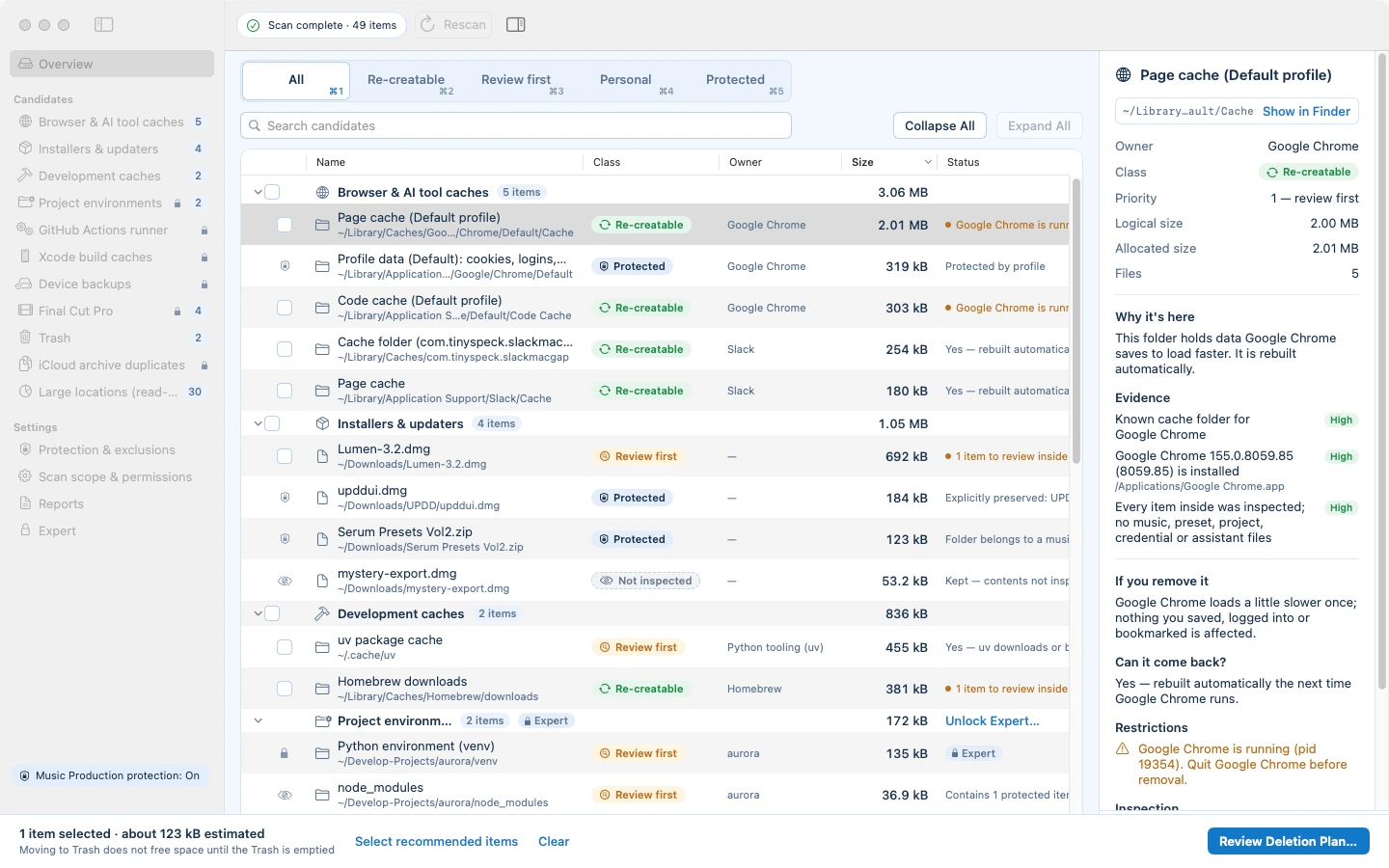
Mac Get Space is built for a musician's Mac. It finds the caches, installers and leftovers you can remove, explains why each one is safe to delete, and excludes the music production files its protection rules recognize.
Development build · sample data
Development build · sample data
What the protection rules cover
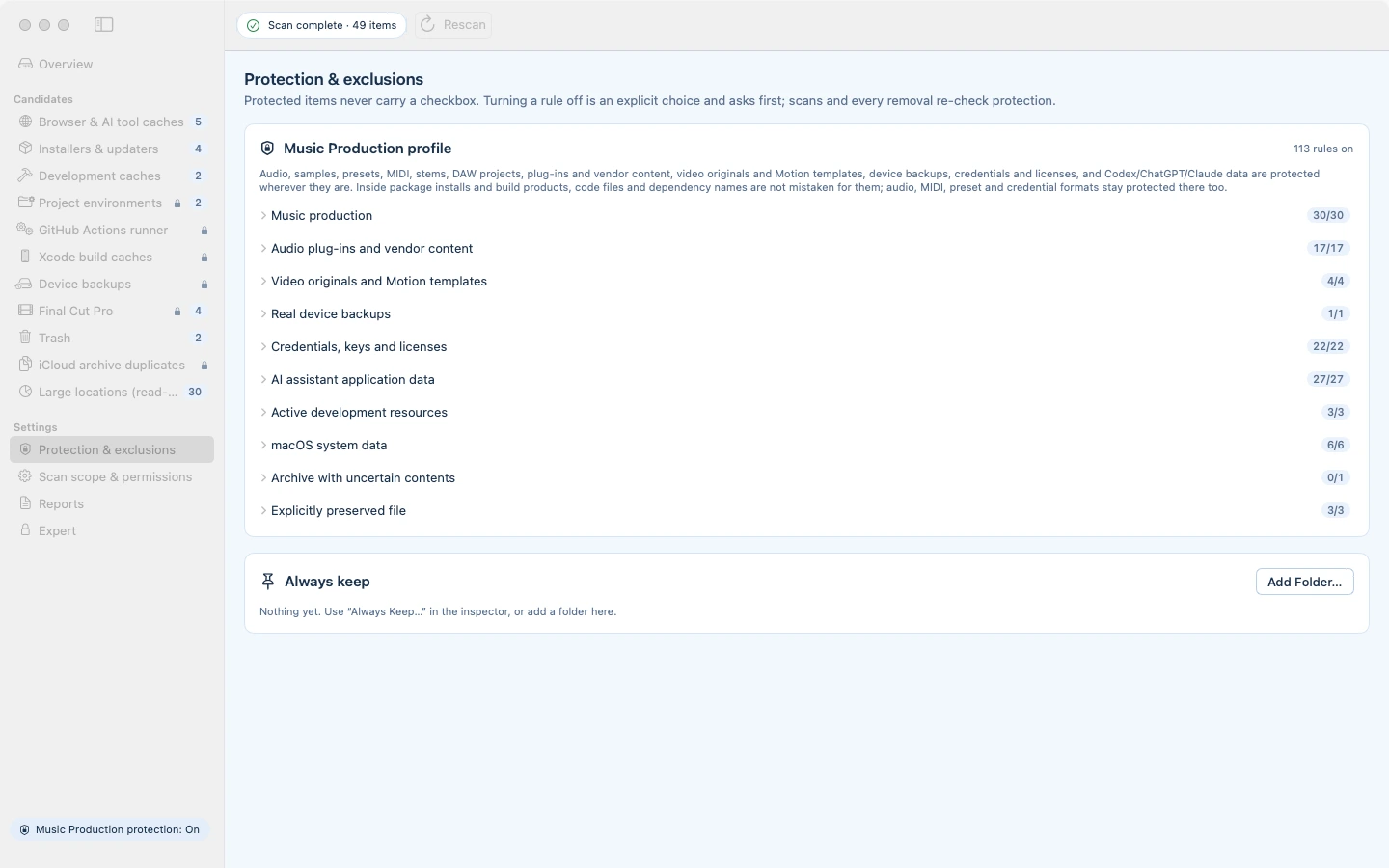
Music production files that match the default protection rules are excluded from removal. The rules recognize these formats and folders wherever the scan finds them, including inside caches, downloads, package folders and build products.
Audio and stems
WAV, AIFF, FLAC, MP3, M4A, CAF and the other audio formats the rules list.
Sample libraries and instruments
Kontakt, EXS, SFZ and SoundFont files, REX loops and other sample library formats.
Presets, patches and MIDI
Plug-in presets and banks, SysEx dumps and MIDI files.
DAW projects
Projects from Logic Pro, GarageBand, Cubase, Ableton Live, Pro Tools, FL Studio, Studio One, Bitwig Studio and Reaper.
Plug-ins and vendor content
VST, VST3, Audio Unit, AAX and CLAP plug-ins, and the content folders of sample and plug-in makers.
Your music folders
Your Music folder, ~/Library/Audio and /Library/Audio, your Splice folder, and any folder named after a DAW, a sound library or words like presets, stems, loops or sample packs.
Protected items never get a checkbox, and a folder that holds protected content can't be removed as a whole. One audio file inside a ZIP in a cache keeps the whole cache. ZIP and tar archives in your Downloads are listed before they are offered: a sample pack that holds audio, presets or projects stays, and an archive that can't be read is kept as not inspected. Video originals, device backups, credentials and AI assistant data are covered too.
Where the rules stop
The rules are a strong default, not a guarantee. Check each item's reason before you approve a plan.
Archives it can't open
Inside a cache, ZIP-family archives are opened and checked. Other types, such as tar, gz, 7z, rar, dmg and pkg, aren't opened, so a cache that holds one is marked to review first: it is never recommended, but you can still select it yourself.
Files the rules don't recognize
Formats and folder names the rules don't list aren't protected by them. Add any folder you always want kept with Always Keep.
Rules you turn off
You can turn a rule off in Protection & exclusions. The app asks first, and the files that rule covered can then be selected.
How a cleanup works
- 1
Scan
Scanning only reads, and nothing is selected by default.
- 2
Review
Each candidate says why it's there, what removing it does and whether it comes back. Re-creatable items, items to review first, personal files and protected items are kept apart.
- 3
Approve a fixed plan
The plan lists exactly what will be removed and how, and you confirm it with Touch ID or your login password.
- 4
Remove and report
Each item is checked again right before it is removed. Regular cleanup moves items to the Trash, and the report shows what actually changed; moving to the Trash frees no space until the Trash is emptied, and the app says so. Deleting items that are already in the Trash is permanent: the plan marks them for permanent deletion before you confirm it.
Free and Expert
Free
Moves browser and app caches, installers and updaters and development caches to the Trash, and can permanently delete the items already in your Trash. Shows the Expert items with their sizes, locked.
Expert (in-app purchase)
Adds more sources, such as project environments, Xcode build caches, GitHub Actions runner leftovers, Final Cut Pro render files and duplicate files in iCloud Drive (Archive) folders, plus permanent deletion instead of the Trash for any item, a deeper scan and duplicate verification.
Every safety feature is in both. None of them is part of the purchase.
Privacy and requirements
Your files are processed on your Mac
Files and scan results are processed on your Mac and are not uploaded to our servers. The app has no analytics and no account. Apple handles Expert purchases and restores.
macOS 14 or later
On first launch it asks once for access to your home folder. Full Disk Access is optional and adds the Trash, device backups, Mail and Messages to the scan.
Frequently asked questions
Will it delete my sample libraries, presets or projects?
Music production files that match the default protection rules are excluded from removal: audio, samples, presets, MIDI, DAW projects and plug-ins get no checkbox, and a folder that holds them can't be removed as a whole. The rules have limits. A cache that holds an archive type the app can't open is marked to review first and can still be selected by hand, and a rule you turn off stops protecting its files. Check each item's reason before you approve a plan.
Does it delete anything on its own?
No. Scanning only reads, and nothing is selected by default. You approve a fixed plan with Touch ID or your login password, and each item is checked again right before it is removed.
Does everything go to the Trash?
Regular cleanup moves items to the Trash by default. Deleting items that are already in the Trash is permanent, and the plan marks them that way before you confirm it. With Expert you can also choose permanent deletion instead of the Trash.
What is the difference between Free and Expert?
Free moves browser and app caches, installers and development caches to the Trash and can permanently delete items already in your Trash; it shows Expert items with their sizes, locked. Expert, a one-time in-app purchase, adds more sources such as project environments, Xcode build caches and Final Cut Pro render files, plus permanent deletion instead of the Trash, a deeper scan and duplicate verification. The safety features are the same in both.
Does it send anything about my files anywhere?
No. Files and scan results are processed on your Mac and are not uploaded to our servers. The app has no analytics and no account, and Apple handles Expert purchases and restores.
What do I need to run it?
A Mac with macOS 14 or later. It asks once for access to your home folder, and Full Disk Access is optional.
Can I get it now?
Not yet: it is being prepared for release. We are preparing its Mac App Store listing first, and this page will link to it once it is available.
More apps for musicians
From the same studio
Culture & Tech also writes and produces original songs for Live-idols.
Hear our Live-idol works